Conversational AI Assistant Starter-Kit
Developer documentation version 1.0
Introduction
- Audience : Developers who involve in using or extending this starter-kit
- Purpose : Capabilities, quick usage instructions and methods of evolution
- Item Version : v 1.0
- Author : Indaka Raigama
- License : Property of iTelaSoft Pty Ltd
Conversational AI assistant start-kit is a ready to use assistant framework that can be quick deployed in the case of proof of concepts and lightweight production deployments. It is an ideal framework for rapid prototyping, building real-time, voice assistants or video assistants with ultra low latency responses. Typical use cases include, but not limited to;
- Adding an AI assistant into a website
- Providing employees of an organization with expert assistance in their daily duties
- Customer support and follow up
- Information gathering and short listing
The assiatant conversations can be configured either as "information providing" or "information collection".
Design Considerations
This assistant starter-kit is designed with the following key considerations.
- Single Deployment Package - Quick deployment in a service such as App Services, or a container
- In-Memory Architectire - In-memory data structures for ultra fast responses, aiming real time use cases (voice, video)
- Local Persistence - Ability run the service without a need of other services such as databases
- Multi Assistant, Multi Session - Serve multiple asistants and multiple concurrent users using the same deployment
Due to such a design, this framework is mostly suitable for rapid deployment AI Assistants within an organization or in a trade with moderate amount of concurrent sessions (tens to hundreds), each taking minutes than hours or days. This might not be a suitable architecture for thousands of concurrent convesations and each conversation lasting for days or weeks. However it can be adapted to such scenarios with changes to internal components.
Features
Conversational Assistant Starter-Kit currently supports the following capabilities out of the box.
- Multiple Personas - With the built-in capability of prompt managament, you are able to define different assitant personas with specific system prompts
- Session Managament - Memory based session manager allows concurrent conversation threads, with configurable session expiration capability
- Conversation History Management - Each session maintains the conversation history (short-term memory) and automatically truncates as it grows large
- Knowledge Managament - Built in content repository allows building a knowledgebase (long-term memory) to be refered during conversations
- Actions and Integrations - 'Native Plugin' capability for providing the assistant with the ability of taking actions and interact with other systems via Integrations
- Local and Cloud AI - Supports OpenAI compatible colud serviecs as well as Local LLMs run on Ollama (with no streaming)
Some of the above features can be quickly tuned to a paticular use case by configuration or using the API. Also, powerful capabilities can be added by including Custom Native Plugins, which require additional code development.
Getting Started
Easiest way to start using the starter-kit is to use the sample deployment at https://conversational-assistant.itelalabs.net. You will be able to access the following.
- Service API - https://conversational-assistant.itelalabs.net/api (use with CURL)
- Service API Documentation - https://conversational-assistant.itelalabs.net/scalar (opens API explorer)
- Developer Documentation - https://conversational-assistant.itelalabs.net/docs (this documentation)
Same URL structure will continue to apply (except for the domain part) when you run the application locally, or when you make your own deplyment.
Customise and Run in Your Own Computer
Clone the Git Repository 'AI Accelerators > Conversational Assistant' into your development enviornment (seek permission from the Administrator for the repository access). This starter-kit is written with C#. Ensure you have the correct Dotnet SDK installed in your computer. It is highly recomended to use VS Code as the IDE. Run the API project at 'src/AssistantApi'. Then you will be able to open the API documentation at '/scalar/'.
http://localhost:5153/scalar/
You will also be able to access other resources in the URLs described above.
Using the CLI Client
When testing or tuning the asistant behavior, Command Line Assistant Interface is a valuable tool for accelerated development. This CLI provides a simple, fast interface to initiate session and go through a cnversation with the assistant service. You can run the CLI Client on a terminal as follows.
                                    cd src/CommandLineClient
                                    dotnet run
For more information regarding usage, follow instructions in the 'Command Line Client' section below.
Basic Concepts
Working with this starter-kit involves understanding some basic concepts. The structure and behavior of the framework is built on top of these key concepts.
Assistant Personas
This framework supports running multiple assistants with different personas. The persona specifies the role of an assistant, speaking tone, knowledge and actions it can take. The persona is defined as a ’system prompt’ in the prompt library. Starter-kit provides an in-memory prompt library that automatically persisted.
For more information about using the prompt library, refer to ‘/api/prompts’.
TIP: When you create a new prompt, the prompt id should be in the format of ‘prompt_name.prompt’. You can create a temporary system prompt that is not permanently saved in the prompt library by just omitting the ‘.prompt’ suffix in the id.
Chat Session
This starter-kit supports multiple chat sessions concurrently. A session is identified with a Session Id, which is created when you start a chat session. When you create a new session, it is useful to provide some information of the user (i.e. username, user id) who participates the session. This information can be used by the assistant to simply address the user by name as well as taking actions with integrations. Following is the key information to be provided when creating a session.
- User Id - Defines the user identity. Ignored if not given.
- Username - Sets the name of the user to be addressed. Ignored if not given
- System Prompt - Sets the persona of the assistant. Defaults to ‘default.prompt’ if not given
Once a new session is created, a Session Id (GUID) is created for subsequent use. Each time you chat with the assistant; this session id must be provided to refer to the chat session.
Sessions are maintained for a finite time and get expired after a certain period from the last interaction. The session timeout is configurable and by default set to 20 minutes.
After a new session is created, you can continue to chat with the assistant providing the session id and the message.
For more information refer to ‘/api/sessions’ for further details.
Managing Knowledge
Assistant should be given with knowledge to be used in the conversations. There are two sources of knowledge it can use.
- The System Prompt can include details to be know. If there is limited amount of knowledge (couple of paragraphs of text), this is the best place to be used.
- The Knowledgebase is a global repository of knowledge, that is implemented as an in-memory vector store. Large text content can be uploaded to the knowledgebase as files. These files are saved in the content store, which in turn be processed in the vector store.
Any changes to the content store are updated in the knowledgebase only after a ‘Rebuild’. In this process, original content is broken down to smaller chunks of paragraphs and stored in the vector store for semantic search and fast retrieval.
For more information about the knowledgebase refer to ‘/api/knowledgebase’ for further details.
Taking Actions
Depending on the conversation, the assistant can be tailor to take actions (i.e. sending emails, update a schedule, creating a lead). This can be achieved by adding Native Plugins into the Assistant Service. Due to the scenario specific nature of actions, you may need to create and add your own plugins into this starter-kit depending on your need.
Using the API
The heart of this starter-kit is the ‘AssistantService’ and all it’s capabilities are exposed to external applications with an API. Using the API, you are able to manage the prompt library, knowledge base, and chat sessions. If you are developing a chat client, the most important section of the API to understand is the ‘Session Endpoints’.
Basic Chat Session
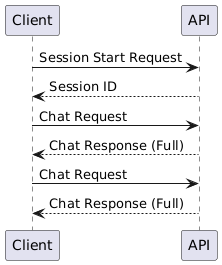
A basic chat session starts with starting a session. This will create a new session in the service and return a Session Id for future reference. Then, each time you create a Chat Request, the same Session Id should be passed with the request. In a basic chat request, Assistant Service will compose and then return the full response.
Streaming Chat Responses
When you want to produce a faster and smoother response experience, use the Streaming Chat endpoint. In this case, rather than returning the full response at the end as text, the response will be streamed (as an event stream) as it’s created. The event stream ends with [END] marker at the end of the stream.
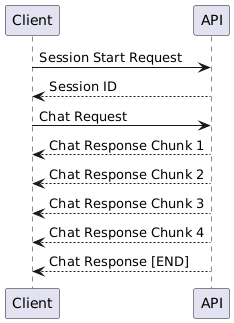
Refer to the CLI Client code to understand how to use the stream in composing response messages. For building complex applications, refer to the API Documentation for full specification.
Command Line Client
Command Line Client is a reference implementation of the chat client logic. Also it serves the purpose of being a useful tool in developing and fine tunning as assiatnt behaviour. when you run the executable in terminal, by default you will get the 'help' documentation.
                                    user@Mac CommandLineClient % dotnet run
                                    Usage: CommandLineClient [command]

                                    CommandLineClient

                                    Commands:
                                    chat

                                    Options:
                                    -h, --help    Show help message
                                    --version     Show version
Use 'chat' command to initiate a chat session. Following shows how to display the help documentation.
                                    user@Mac CommandLineClient % dotnet run -- chat --help
                                    Usage: CommandLineClient chat [--api] [--user-name] [--user-id] [--system-prompt] [--help]

                                    Options:
                                    --api                       Assistant service API url
                                    --user-name                 User name of the human who uses assistant
                                    --user-id                   User Id to be used by the assistant framework
                                    --system-prompt             System prompt id to be used
                                    -h, --help                  Show help message
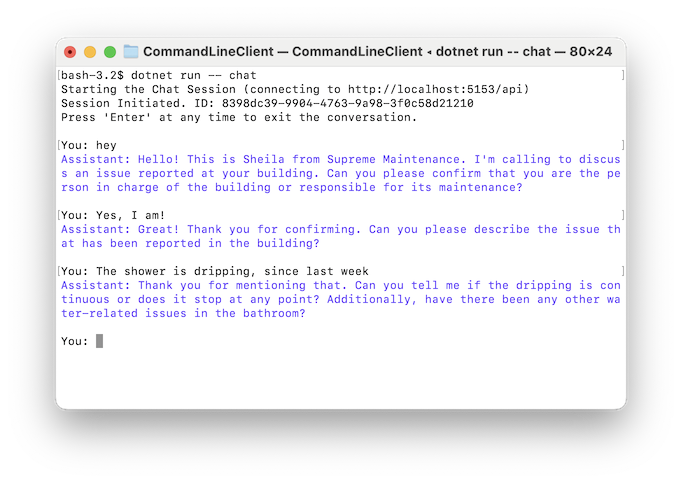
How to point the CLI to a remotely running assistant service...
dotnet run -- chat --api https://conversational-assistant.itelalabs.net/api
Video Assistant Client
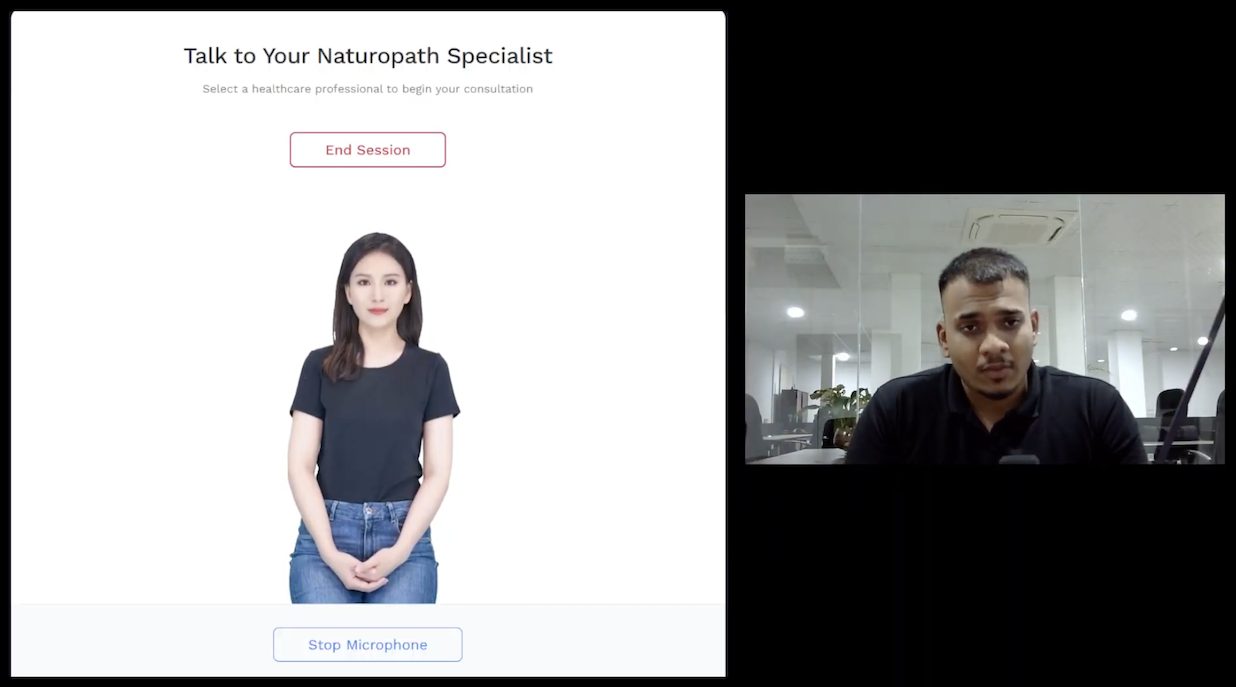
Video assistant client is an embeddable component that can be used to deliver a video conferencing experience for high touch use case. This is implemented as a standards-based Web Component so that it can be easily added to a web application.
How to Use the Video Assistant Client
You may add the video assistant into your web site or web application by simply incorporating the web component in the HTML mark-up.
The web component has following properties for configuration.
| Property | Description |
|---|---|
| microphone | alwaysOn (listens to the user all the time), auto (turns off when the assiatnt speaks)) |
| userId | A user identity to be passed into the conversation for any business logic processing |
| username | Name of the user. This will be used by the assiatnt during the conversation |
| background | Background image url (if not provided, background will be transperent) |
Audio Assistant Client
To be completed
Web Assistant Client
To be completed
Safety with AI
This starter-kit is designed in such a way that it is suitable to be used in relatively simpler use cases, as well as in enterprise scenarios. When it comes to enterprise level use cases, safety with AI is a key consideration. Following are some of the key approaches in how in how it is accomplished.
- Processing Pipeline Filters - Filters enhance security by providing control and visibility over how and when functions run. This is needed to instill responsible AI principles into your work so that you feel confident your solution is enterprise ready. There are two types of filters (a) Function Invocation Filters (b) Prompt Render Filters. Using them you can gain control of the aspects in function/tool calling and prompts/responses. You can create your own filter and place in the ‘Filters’ folder in the AssistantService.
- Observability Options - When you build AI solutions, you want to be able to observe the behavior of your services. Observability is the ability to monitor and analyze the internal state of components within a distributed system. It is a key requirement for building enterprise-ready AI solutions. Observability is typically achieved through logging, metrics, and tracing. They are often referred to as the three pillars of observability. Observability provides an ongoing overview of the system's health and performance. Some of these options and already catered through logging and Open Telemetry compliance. You may tailor these with changed to the application builder and dependency injection pipeline.
In adddition to the above, you are able to 'ground the AI' in many ways by simply authoring the system prompts carefully.
Extending the Starter-Kit
Where you need more capabilities beyoud out of the box features, you may extend the code and add your own features. In most of the cases, this can be achived by adding Custom Native Plugins into the code and providing a suitable system prompt. Refer to the documentation (Readme) available in the code reporsitory to understand the code structure and specific instuctions.
For more information about copyright and license contact www.itelasoft.com.au.